Contact support
This form sends an email to our support team at support@senserva.com. The more detail you give us about your version, platform, and what you saw, the faster we can help.
Setup notes
The fast path from download to your first findings. For the full walkthrough, see the Quick Start and the guided demo and training.
Download for your platform
Grab the signed build for your OS. The Mac zip clears the macOS quarantine flag on first run.
Run it. Explore the demo, free
Launch the executable with no parameters. The demo tenant and Game Mode run immediately, with no registration, no key, and no access to your tenant. It is the quickest way to see how Siemserva and Microsoft 365 security work.
Register a free key to scan your own tenant
Register free to unlock a verified scan of your own Microsoft 365, Intune, and Entra ID, up to 3 tenants and 25 users each. Paste the key into the setup wizard when prompted. Buy to remove the caps.
Sign in and grant read access
The setup wizard walks you through signing in and consenting to read-only Microsoft Graph permissions. Siemserva reads configuration and logs; it does not change your tenant. Results stay in a local file you control, nothing is sent to a cloud pipeline. A Global Reader or equivalent works for most scans.
Scan, then read the dashboard or ask Claude
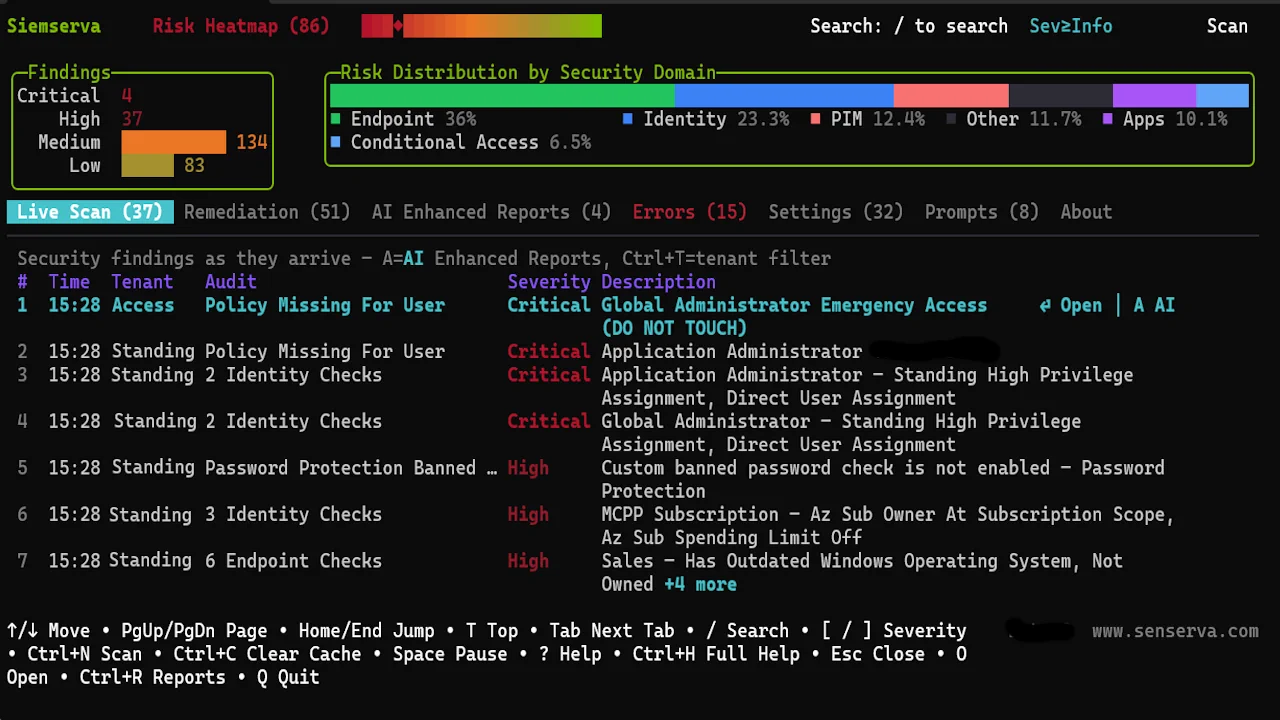
Run the scan and review findings in the live dashboard, sorted by Severity with compliance overlays. For plain-English answers, connect Claude and MCP and ask questions grounded in your own security graph. You can also bring your own AI model for AI reports and remediation guidance.
Detailed help from the command line
The complete Siemserva help guide, one command away
Run --full-help and Siemserva builds a rich, branded guide and opens it right in your browser. Everything you need is in one place, no internet search required.
siemserva --full-help
Opens in your browser
Need a quick reference in the terminal instead? Add --help (or -h) to list every command and option:
Add --help after any command for detailed help on just that command, including its options and examples:
On macOS the command is ./siemserva-osx-arm64 --help, and on Windows siemserva-win-x64.exe --help. To reopen the first-run setup wizard at any time, run siemserva --setup.
Want to evaluate without touching your real machine? Run Siemserva inside Windows Sandbox, then delete the instance when you are done.
Working as a team? Siemserva can store scan data in a shared cloud database hosted in your own Azure, so several operators share the same findings. The local database is the default and needs no setup. Run siemserva setup-storage for the guided wizard. How the shared cloud database works.
Connect Claude to Siemserva
Siemserva ships a market-leading MCP server, so you can run the whole product from Claude in plain language: ask which controls you fail, trace privilege paths, or build a remediation plan, all grounded in your real scan data. This step-by-step guide walks you through connecting Claude to Siemserva over the Senserva MCP, from installing the connector to asking your first question, so you are up and running in minutes.
Prefer the overview first? See Claude and the Senserva MCP.
Support FAQ
Quick answers to the questions we hear most. For product and licensing questions, see the full FAQ.
Use the form at the top of this page, or email support@senserva.com directly. For pricing and licensing, write info@senserva.com.
Your Siemserva version (Help > About), your operating system, the steps you took, what you expected, and what actually happened. If you can reproduce the issue, the exact steps help us fix it fastest. Please leave out tenant data, secrets, and personal information.
Most messages get a reply within one business day. First-contact email sometimes lands in spam, so please check that folder and add us to your safe senders if you do not see a reply.
Use this form and pick "Bug report" or "Feature request" for the topic, or open an issue on the public Siemserva Releases repository on GitHub, where you will also find releases and community discussions.
Keys usually arrive within a couple of minutes of registering. If it has not shown up, check your spam folder first, then email GetFree@senserva.com and we will get you a key.
No. Siemserva reads configuration and logs using read-only Microsoft Graph permissions. It does not modify your tenant, and scan results stay in a local file you control. There is no agent and no cloud pipeline.
The setup wizard requests read-only Graph scopes and walks you through consent. A Global Reader or equivalent read role covers most scans. See the Quick Start for details.
